

Prototyping and design · 03
Clickable prototype
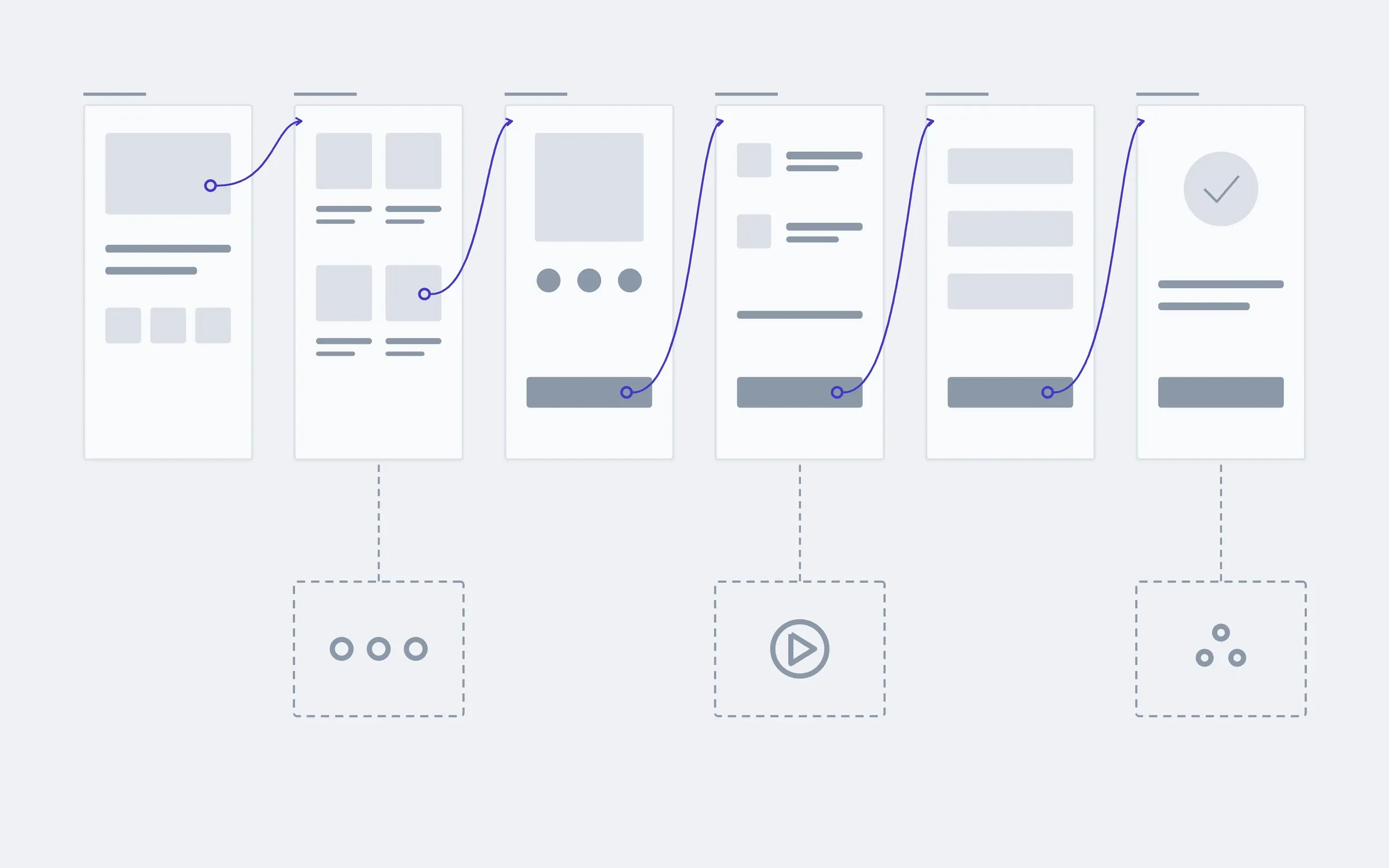
Grey screens linked so you can walk through them on a phone like a finished app. You and your customers see where the path breaks before you pay for the code.
- 01You tell us which path you want to check, and on whom
- 02We clarify the details by message or a call
- 03We give you the price and timeline of the prototype
Not sure a prototype is what you need? Compare it with the other design services
What the prototype includes, and where it ends
The first list goes into every prototype; the second we add separately. A prototype isn't software: it doesn't store data or take payments, but it can be changed the same day.
includedseparately, if needed
Grey screens for the whole path
Every screen of the main flow, without colour or photos, so people discuss the path rather than the style.
Taps and transitions
Every button a person taps leads where it should.
Branches
Back, an error, an empty result: the prototype doesn't break when someone takes the wrong turn.
On your own phone
Opens from a link on a phone or computer, nothing to install.
What we check
We write down what a person has to do from the first screen to the last: find a product, add it to the cart, reach payment.
A walkthrough with you
We walk through the prototype with you and your team and note what to change.
Changes before development
Changes from the walkthrough go into the prototype, so development starts from the corrected version.
The file is yours
The prototype sits in your Figma account; you can show and change it without us.
Separately
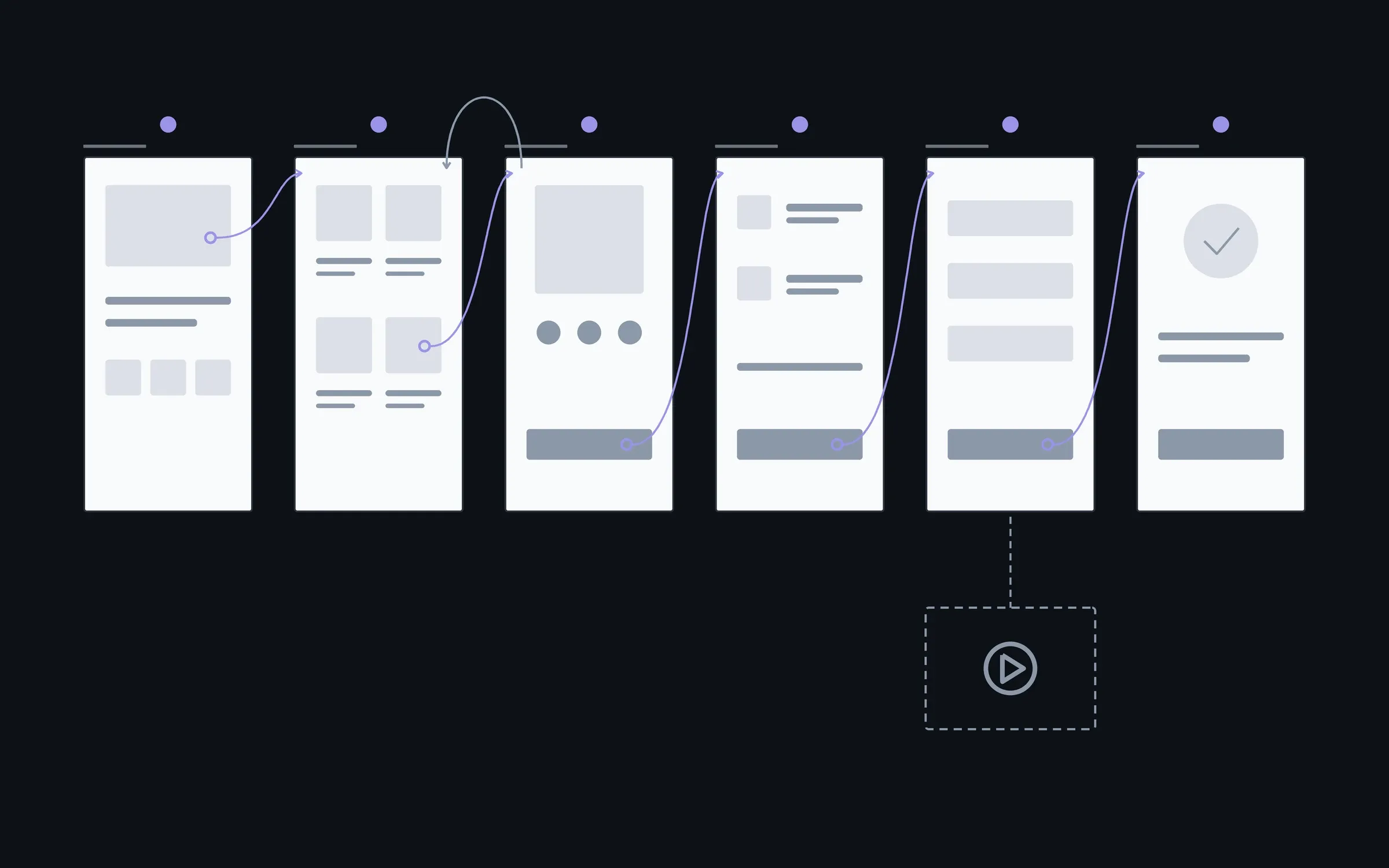
A demo video
A recorded walkthrough of the prototype for a team or an investor, to show the idea without a live presentation.
A prototype in colour
The same, built on finished design screens, when what's being tested is the impression rather than the path.
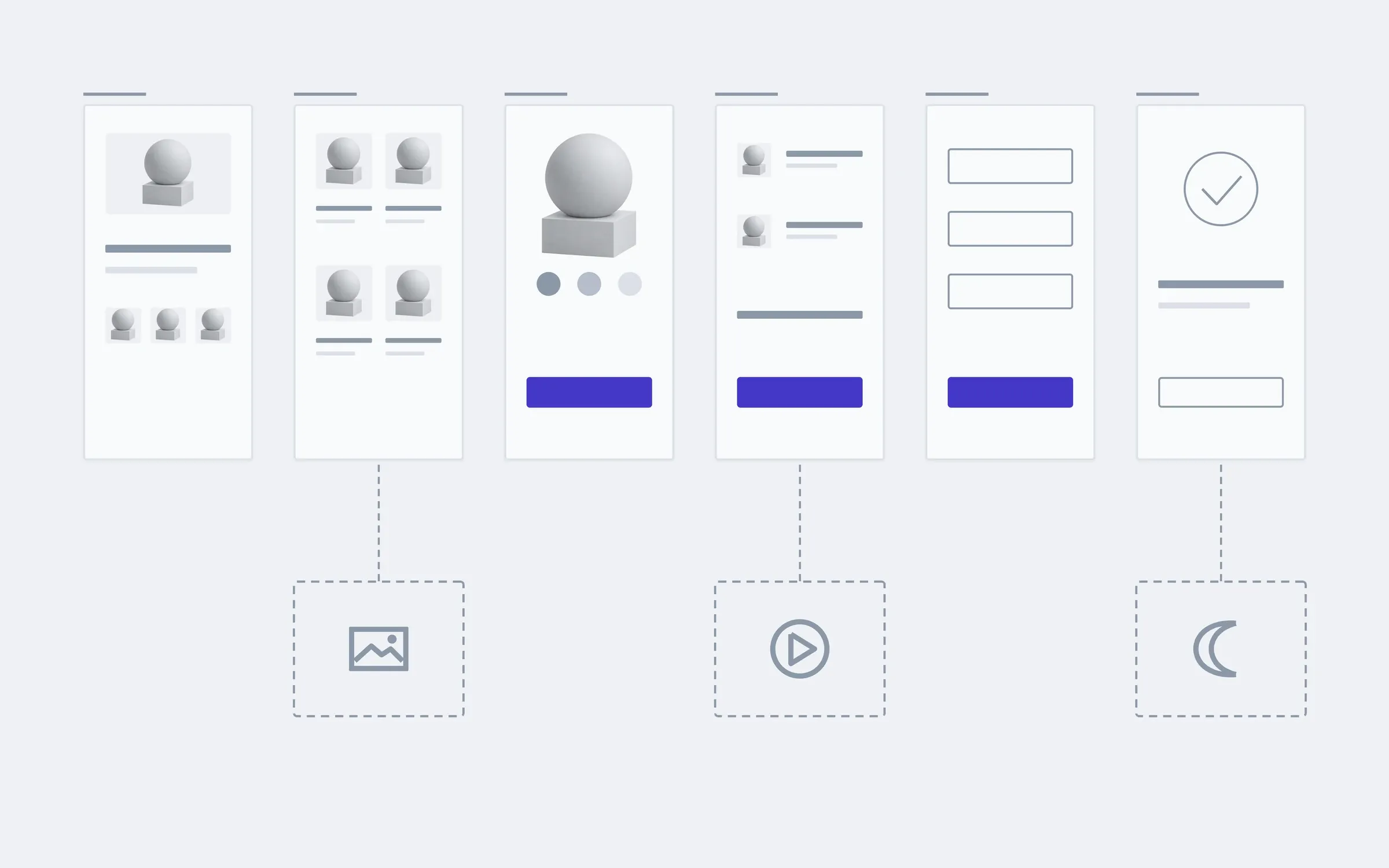
Where people tap in a shop prototype
Under each screen is what can be tapped on it. These are the points we check in the walkthrough: does a person find the right one, or tap the wrong one.
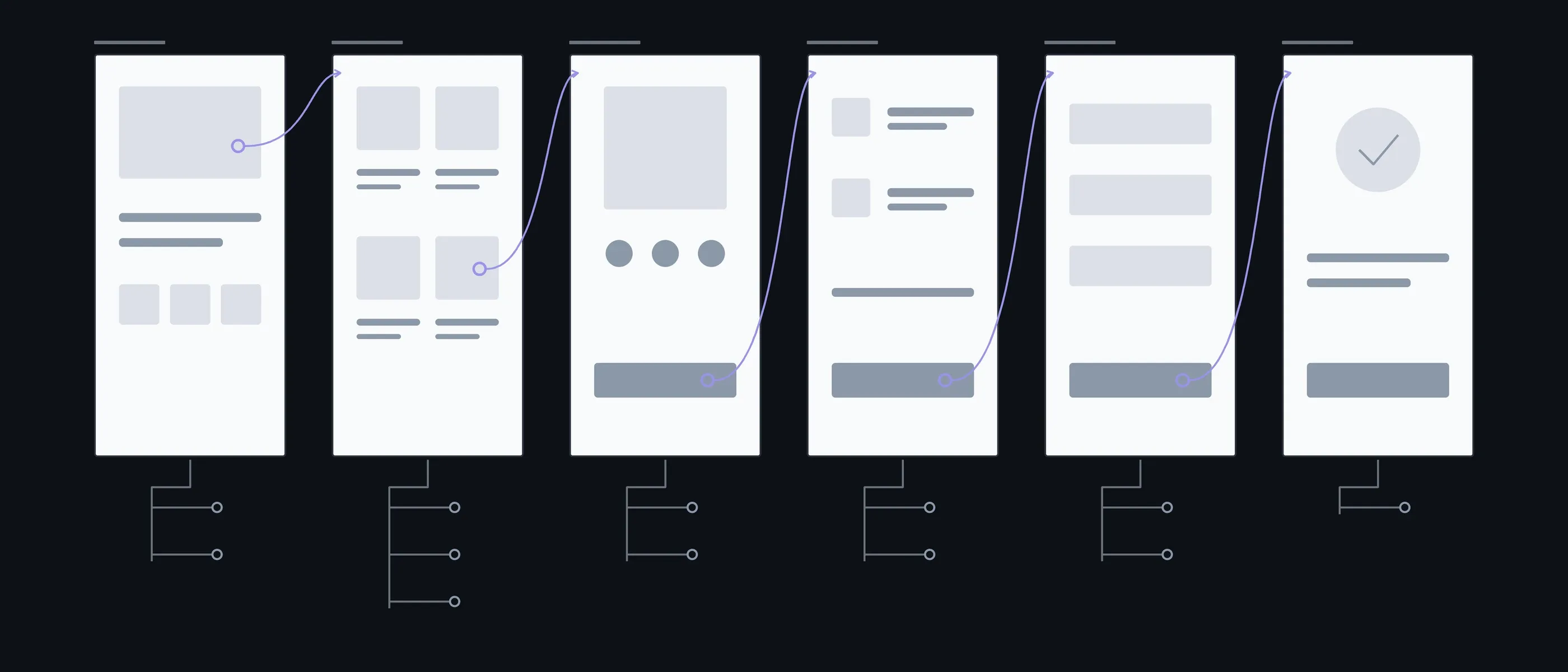
Home
Banner · Search
Two ways into the catalogue
Catalogue
Filter · Product · More
The most decisions on one screen
Product
Option · Add to cart
The key button of the path
Cart
Change · Check out
This is where hesitation shows
Payment
Pay · Back
The way forward and the way back
Done
Back to home
The end of the path, and it has to lead somewhere too
What you have in hand after each step
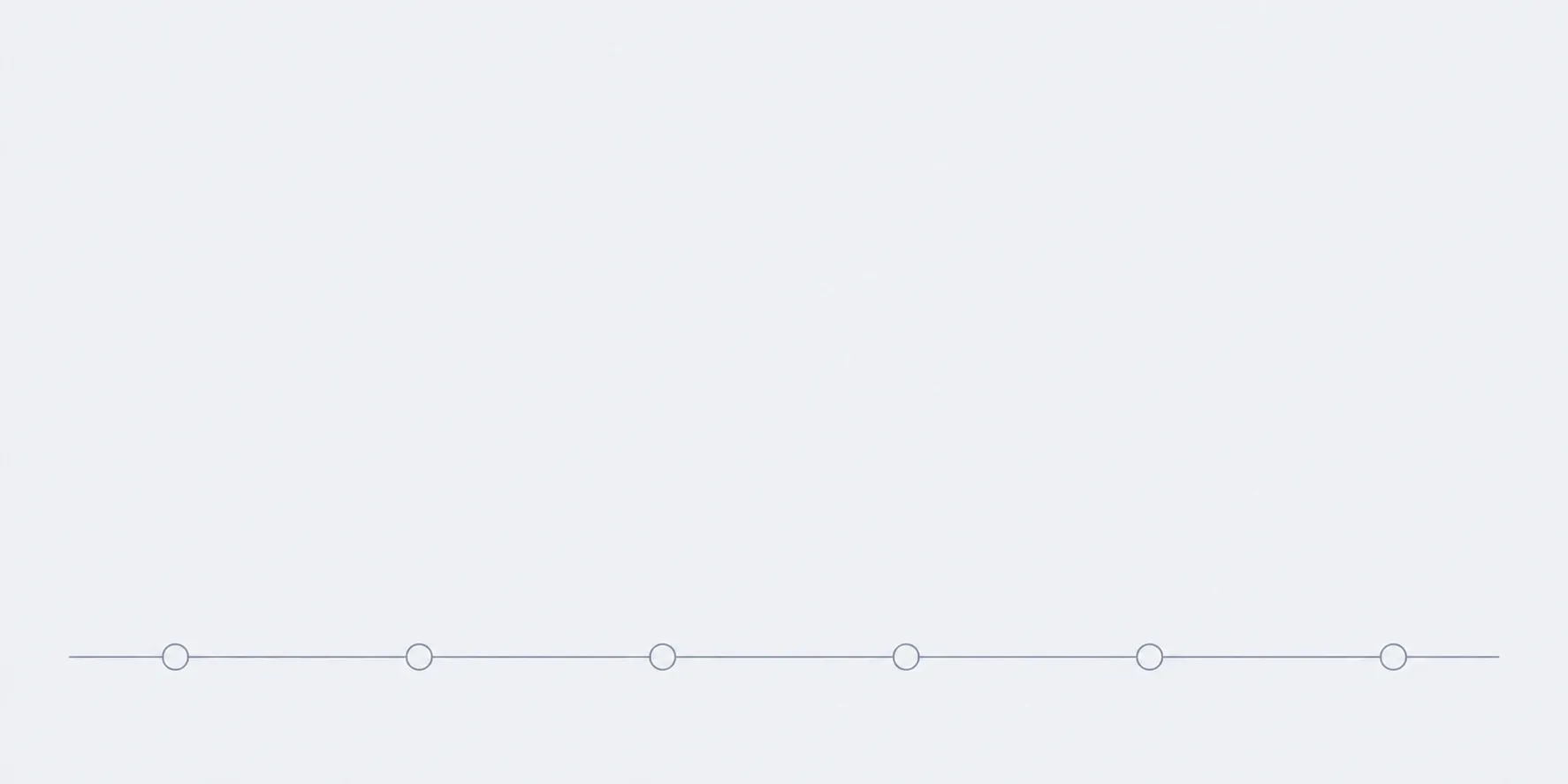
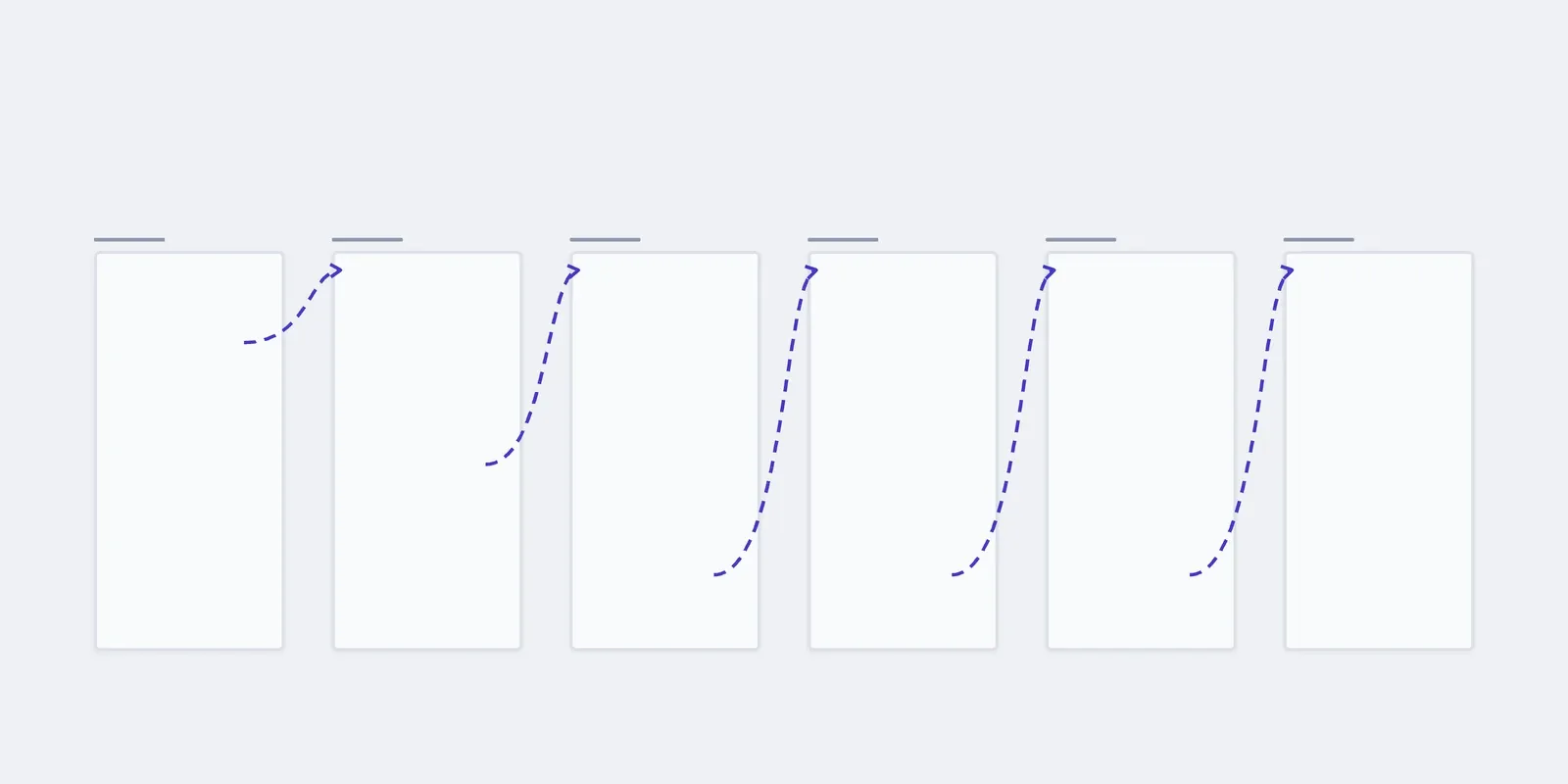
First we sketch the path, then put grey screens on it and link them. You walk through the prototype yourself by step four, and step five shows how others get through it.
01Conversation
We work out which path needs checking and what counts as success.
In hand
The path and the success criterion
02Path
We sketch which screen leads where, before the screens themselves exist.
In hand
A map of the transitions
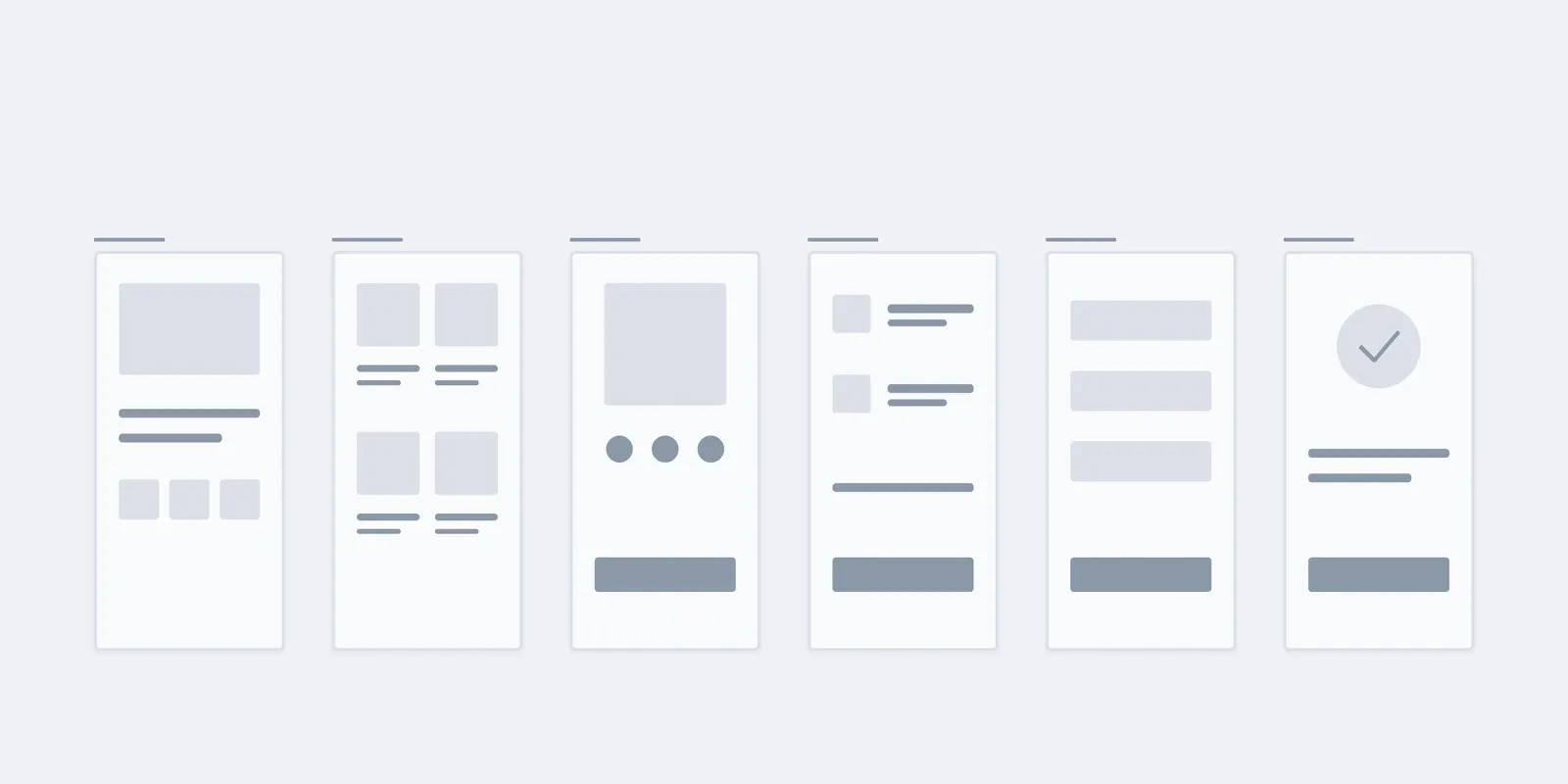
03Grey screens
We draw every screen on the path in grey, with all its buttons and fields.
In hand
Grey screens of the main flow
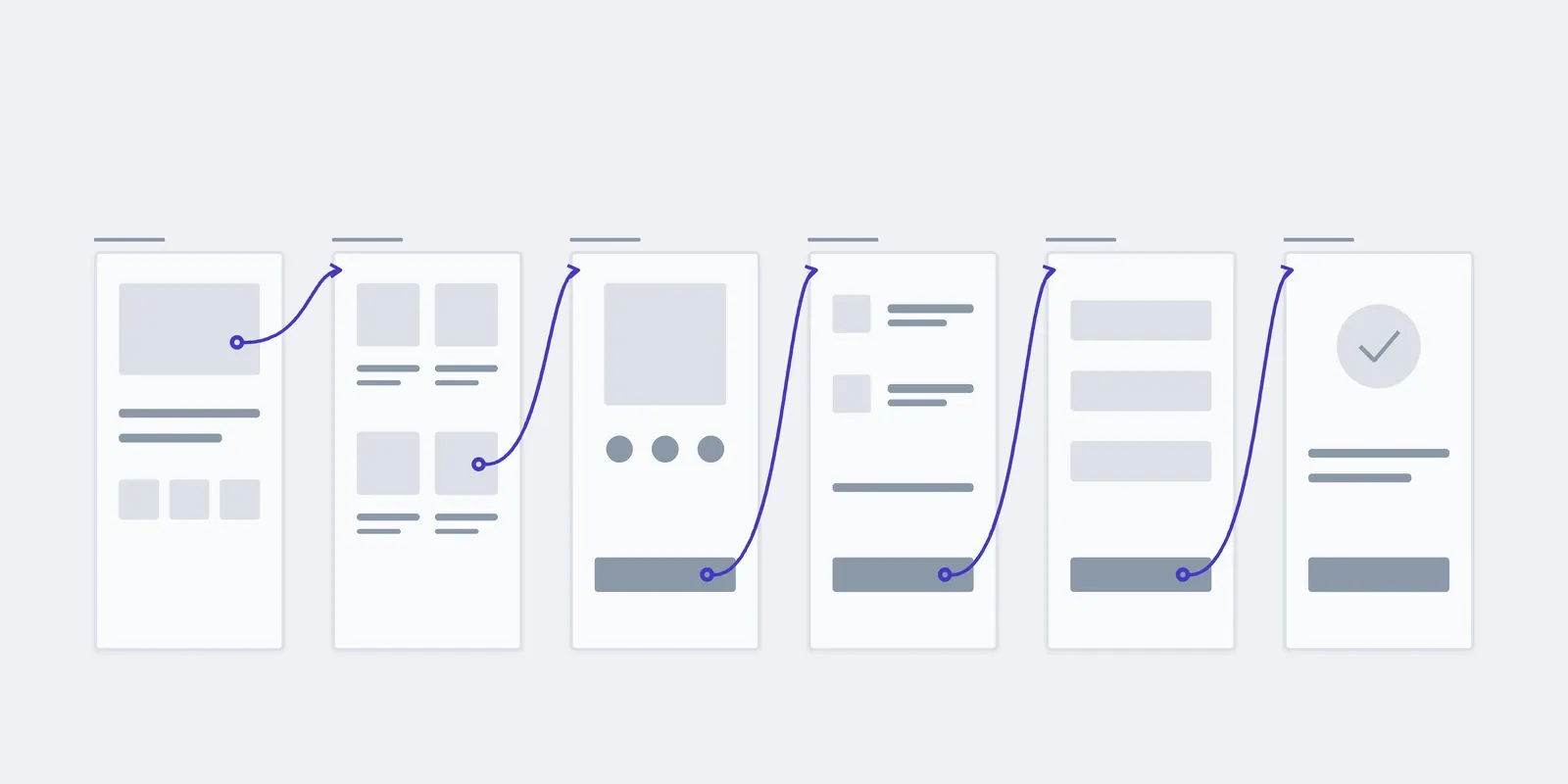
04Links
We link buttons to screens and add the branches: back, an error.
In hand
A prototype at a link that you can tap through
05Walkthrough
We walk through the prototype with you and your team and fix where the path broke.
In hand
A list of where the path broke, and the corrected prototype
What the price and timeline depend on
A grey prototype of one path takes days. A prototype in colour, with motion and several paths, takes longer. After the conversation we give a fixed price for the whole prototype.
- 01Paths and branches
- How many flows we check and how many places in each where someone can turn off.
- 02Grey or designed
- Grey is faster and tests the path more honestly. Colour needs finished design screens.
- 03Transitions and motion
- Simple transitions between screens are always included. Animating elements adds time.
- 04Rounds of changes
- One round of changes after the walkthrough is always included. Each further round adds time.
The prototype changes while change is still cheap
What the walkthrough found in the cart and at payment we fix in the prototype, not in code. If it turns out people need a whole screen that isn't there, we add it with you as a separate step.
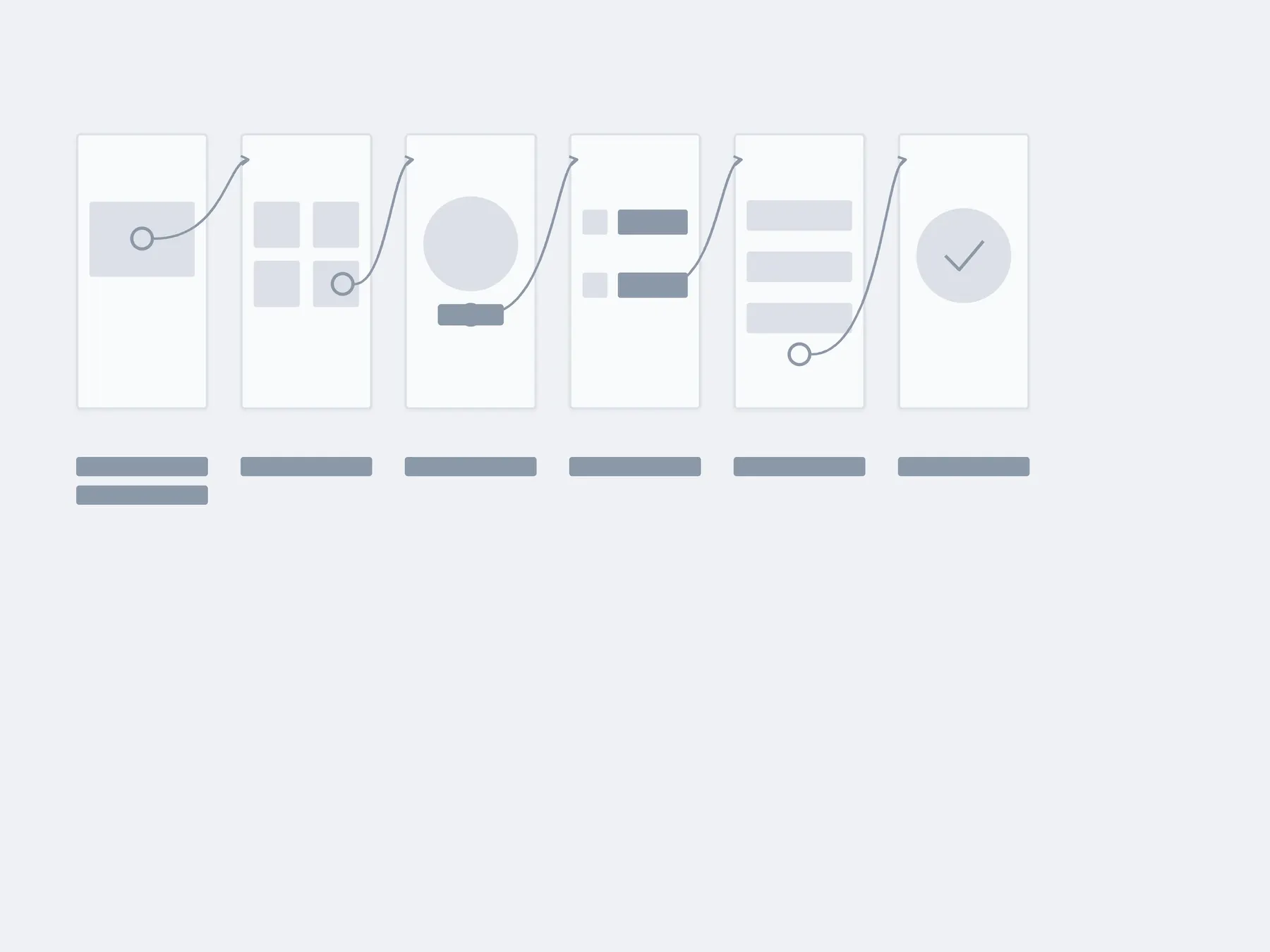
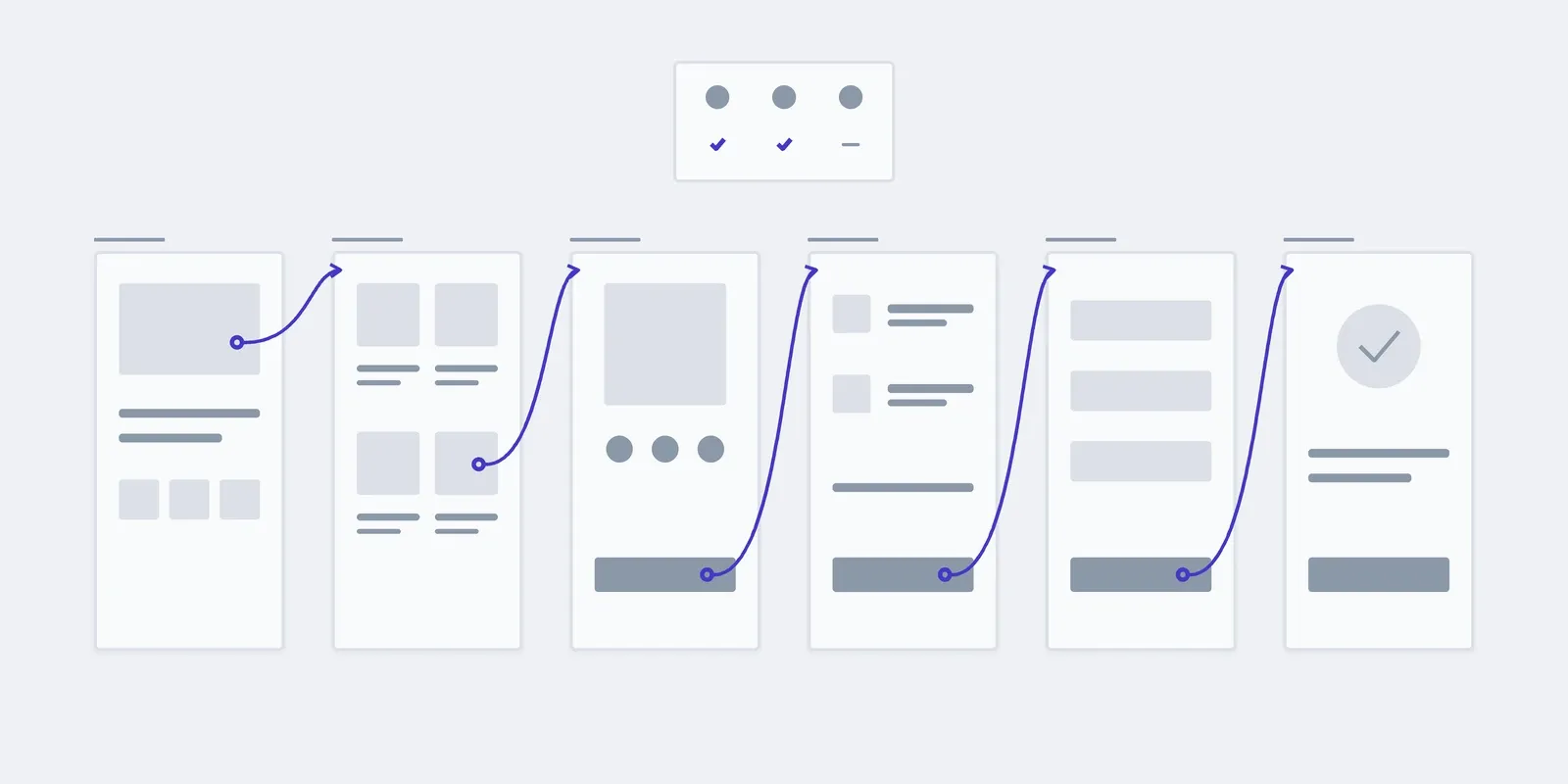
01First walkthrough
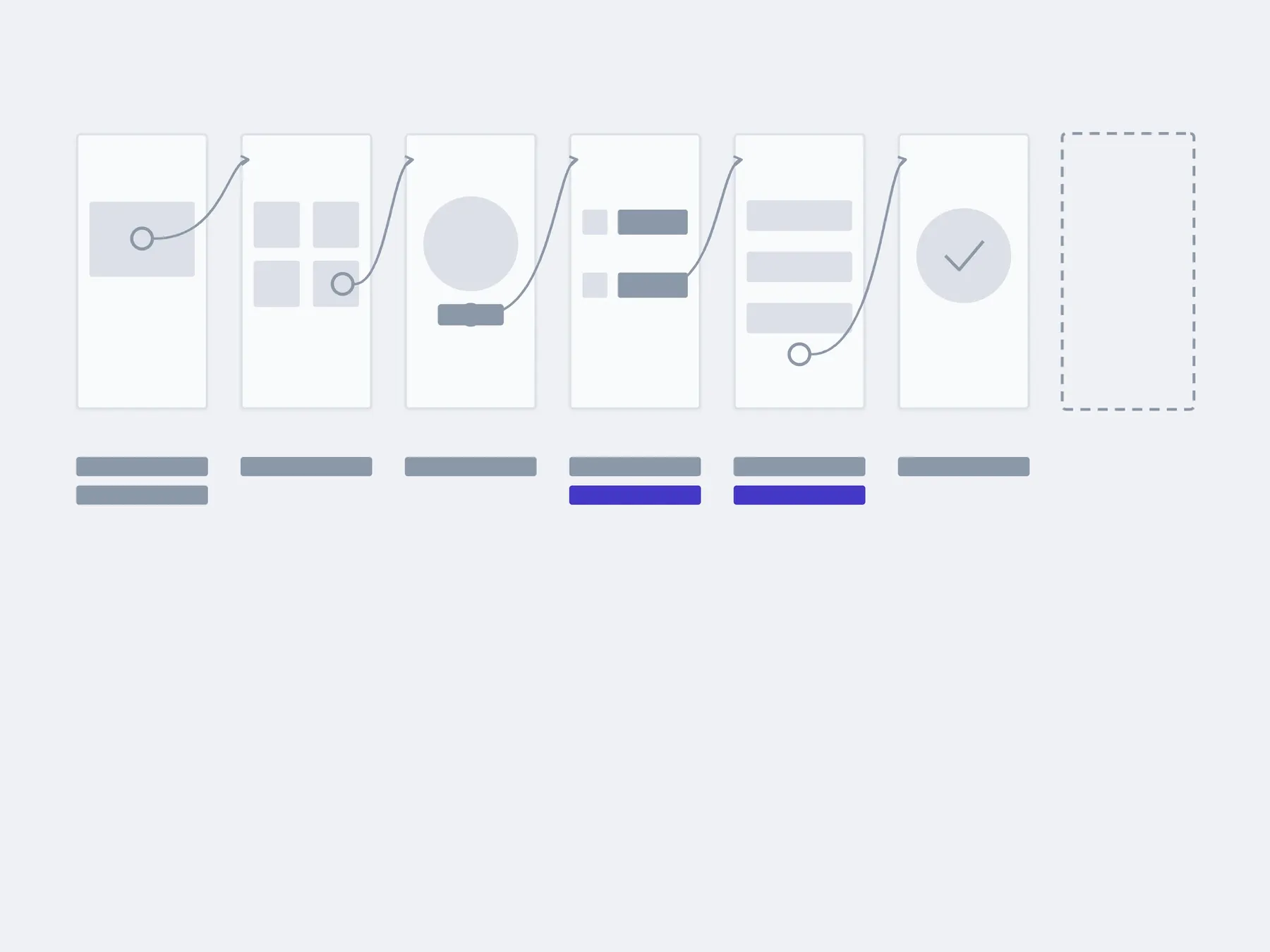
02After changes
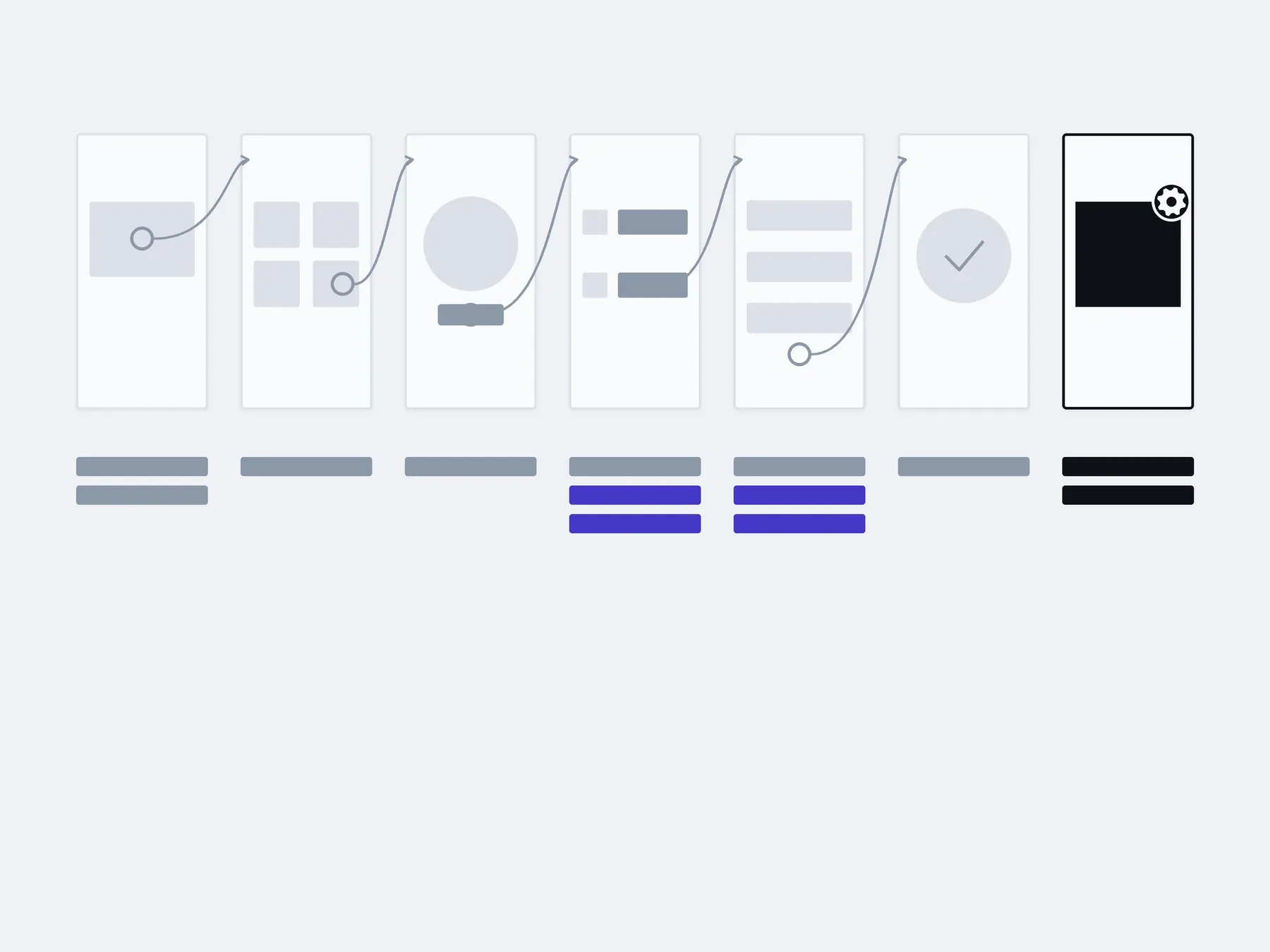
03Before development
changed after the walkthrough: cart and paymentadded with us: the screen that was missing
The stages are illustrative: an example, not a plan.
You, in the admin
- Show the prototype to a few more customers
- Gather what your team and sales think
- Check the button labels
About clickable prototypes
Can I order design only, without development?
A prototype helps in all three cases: to test a new product, to show a team what to build, or to see where people get lost in the one you have.
Design only. You hand the prototype and mockups to your own developers. When you have a developer and need to know the path is right before the code.
Design and build. We do the prototype, the design and the code, from outline to launch. When there's no product yet and it's easier to have one studio answer for all of it.
Tidying up what exists. The product runs, but people drop the path halfway. When a new version of the path needs checking before the code is reworked.
How much does a prototype cost?
After the conversation we give a fixed price for the whole prototype. It depends on the number of paths and branches, grey or colour, motion, and the number of rounds of changes.
Why is the prototype grey?
So the review is about whether people find their way, not about the colour of a button. Colour comes once the path works.
Is it an app already?
No. A prototype shows screens and transitions but doesn't store data or take payments. In return, it can be changed in a day rather than weeks.
Can we show the prototype to an investor?
Yes, at a link or as a recording. For a pitch a prototype in colour and a demo video work better; that's separate work.
What comes after the prototype?
Screen design along the tested path, then development. The prototype becomes the brief for both: every screen and every transition is visible.
What sits alongside a prototype
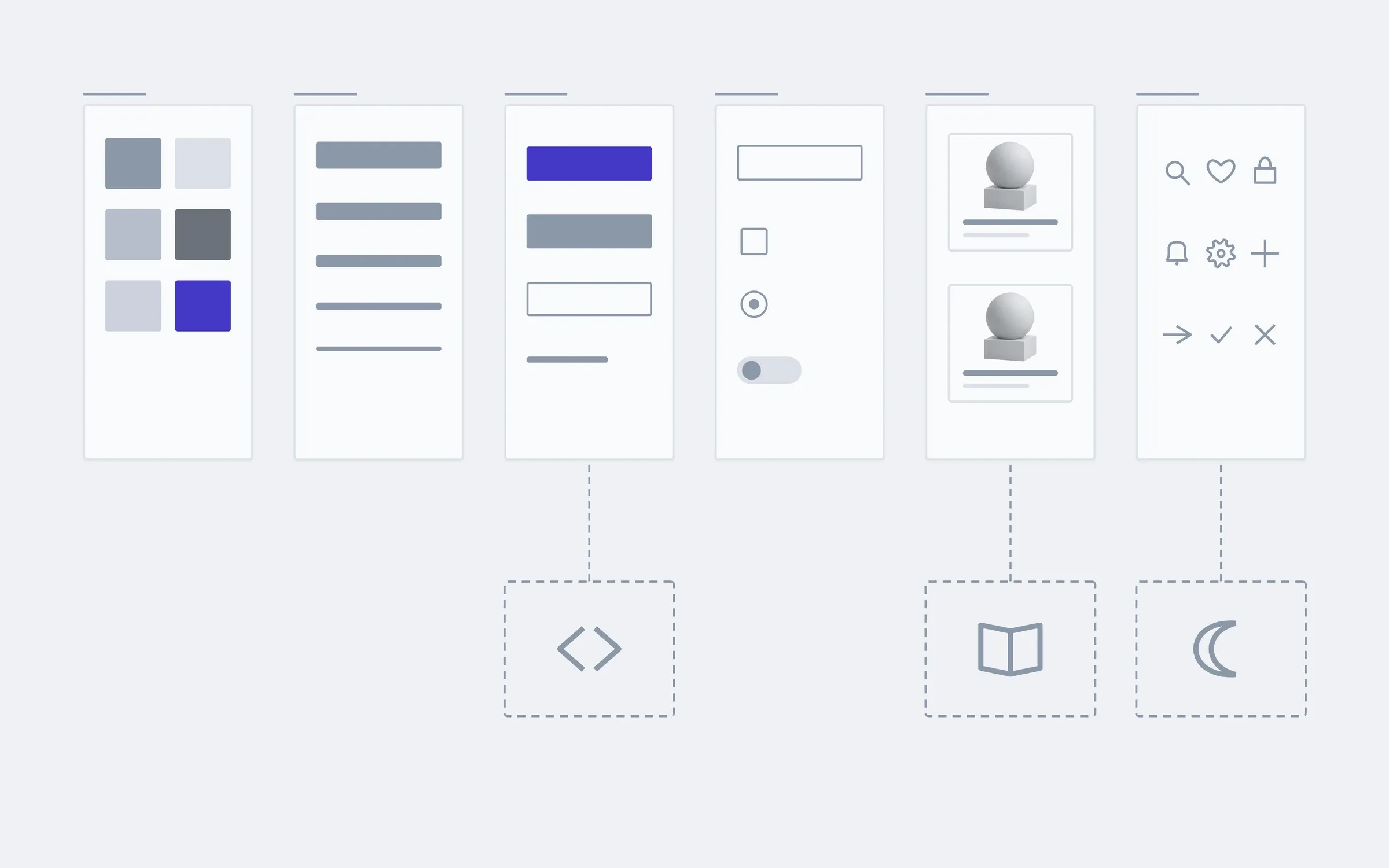
A prototype is built on a map, and then the screens and the component system are built on it.
- Structure and journeysWhat sits where, and the path a person takes to the thing they came for.
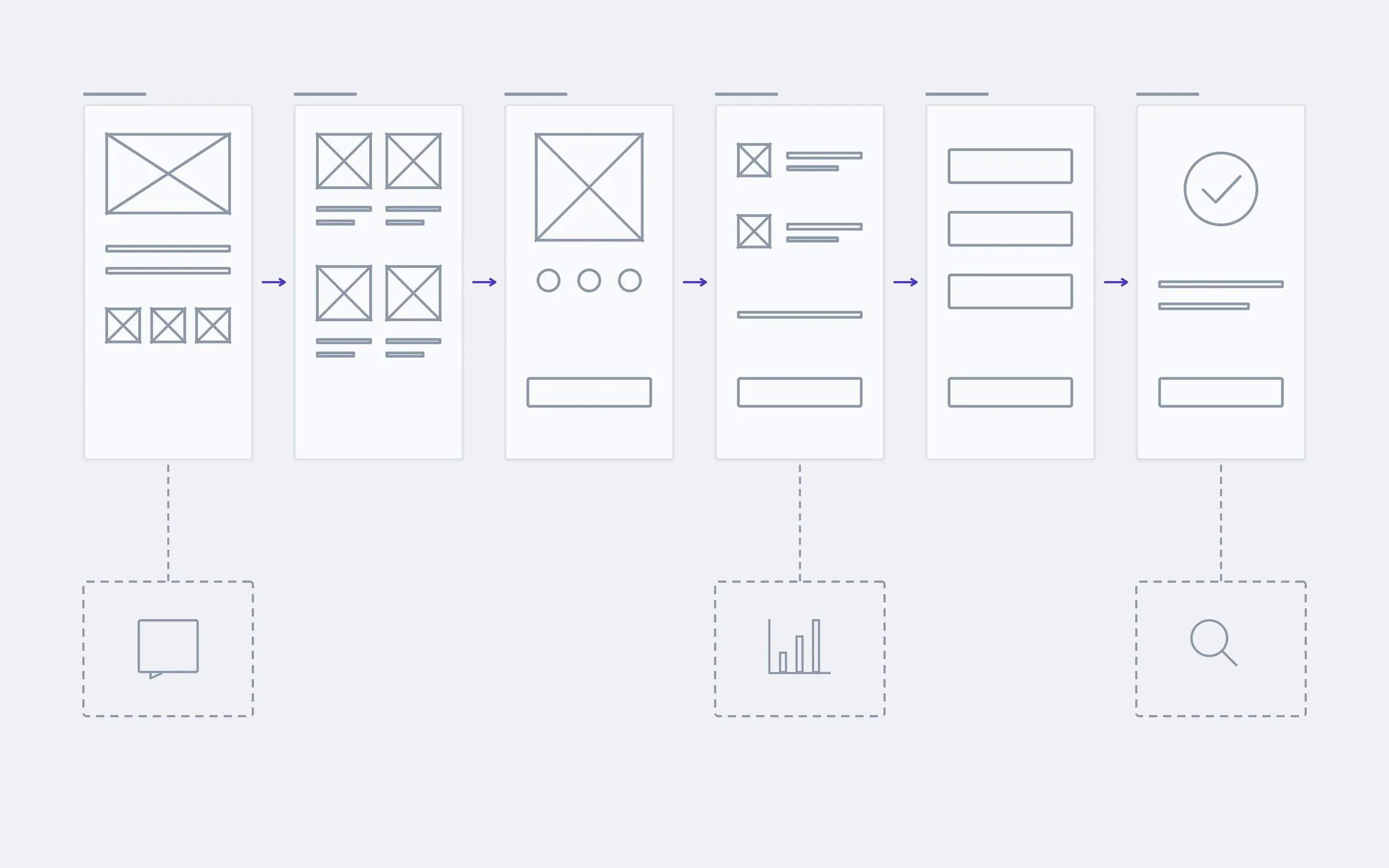
- Screen designType, colour, states. Including the empty screen and the one with the error.
- This pageA clickable prototypeWalk the path with a finger before any code exists.
- A design systemComponents and rules, so the next screen is drawn faster than the last one.
Tell us which path in your product matters most, and we'll tell you how many screens it takes to test it.
- 01A link
to the site, the mock-up or the repository, whatever exists
- 02What to change
one sentence on what should become different
- 03Who it's for
who will use it: your customers, your team, and how many